ABLETON LIVE EXTENSION
MathRonome for Live
Shape up to four polyrhythmic layers in a ring, listen, then fill an Ableton Live clip with editable MIDI.
$5, one time · Buy on Gumroad ↗
Questions? Write to support@pujamusic.com
Offline guide: Download the English PDF
Looking for the separate MathRonome metronome app?
MathRonome app guide · View on the App Store
01 / GET STARTED
Install the extension
MathRonome for Live is a .ablx Extension, not a VST or the separate iPhone/iPad MathRonome app. It needs Ableton Live 12 Suite beta 12.4.5 or later with Extensions support. Check that Settings → Extensions exists in your Live installation; Ableton’s Extensions FAQ explains availability. Windows use has not been verified.
- After purchase, download and unzip the package, then save the MathRonome
.ablxfile. You do not need Node, the SDK, or Developer Mode. - With Developer Mode off, open Settings → Extensions in Live, choose Choose File, and select the
.ablx. Restart Live if prompted. - In Session View, right-click an empty MIDI clip slot or an existing MIDI clip and choose Extensions → Fill with polyrhythm….
Put an instrument or Drum Rack on that MIDI track. The extension writes notes; your track’s instrument makes the sound.
02 / QUICK START
Make a 3:4 pattern
- Right-click an empty MIDI clip slot and open Fill with polyrhythm….
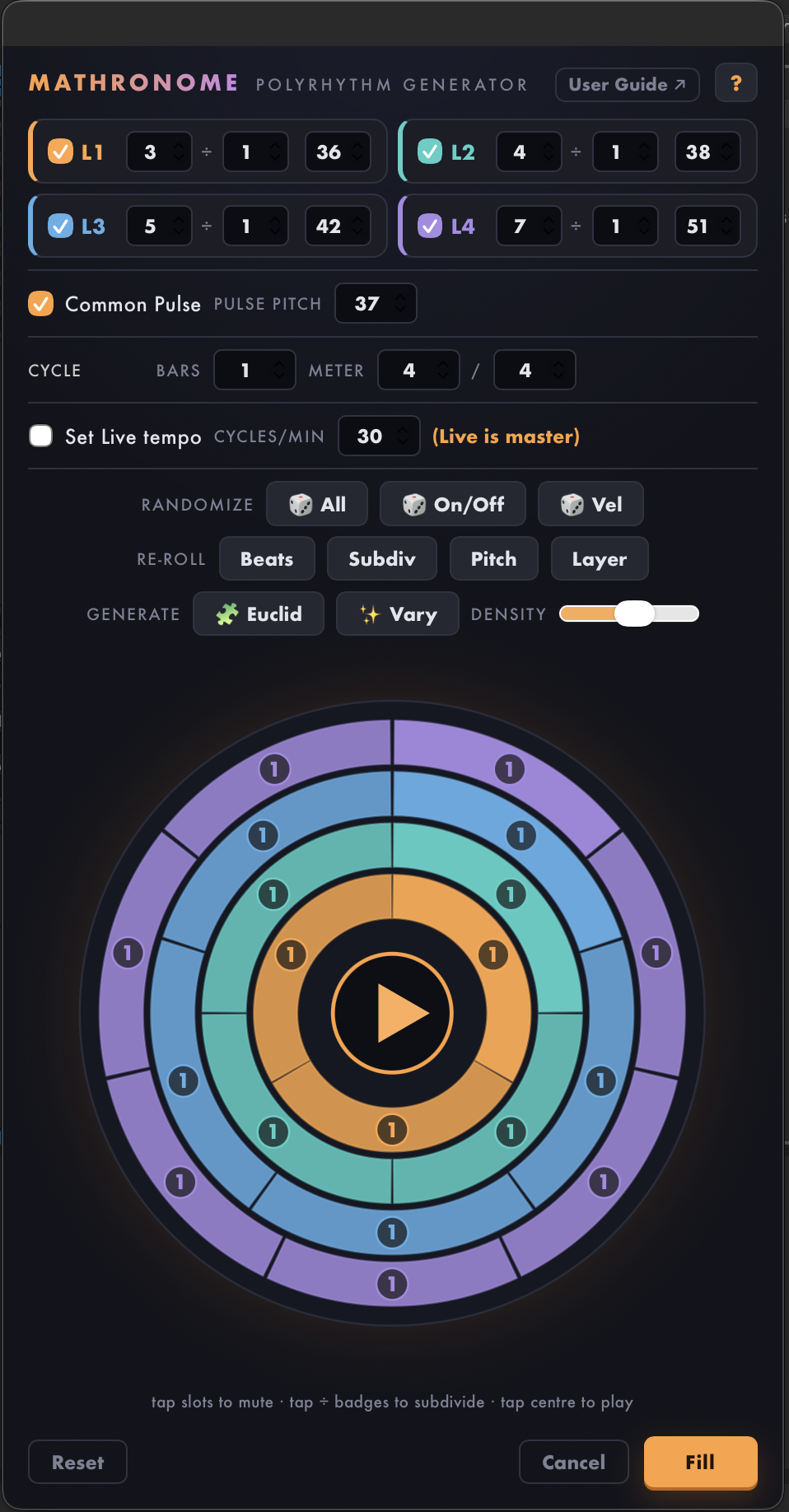
- Leave L1 on with 3 beats and pitch 36; leave L2 on with 4 beats and pitch 38. Turn L3 and L4 off. The screenshot above has all four layers on; turn L3 and L4 off for this 3:4 example.
- Set Cycle to 1 bar, 4/4. Leave the layer-wide subdivision at ÷1. Turn Common Pulse on if you want to hear the shared 12-point grid beneath 3:4.
- Press the play triangle in the center to audition the click. Press it again to stop the preview. The preview is separate from Live’s transport and instruments.
- Press Fill. Live creates a one-cycle MIDI clip. Play the clip through your instrument; open its piano roll to edit the notes.
To hear a third layer, enable L3 (5 beats). For 3:4:5, the Common Pulse has 60 grid points. Enabling L4 at 7 as well makes the default 3:4:5:7 grid 420 points, so Common Pulse does not appear or sound: its limit is 64 points per cycle.
03 / REFERENCE
Controls at a glance
| Control | What it changes | Range / starting value |
|---|---|---|
| L1–L4 checkbox | Includes or removes that rhythm layer from the ring and generated notes. | Reset and screenshot: all four on. |
| Beats | Equally spaced beats for that layer across the whole cycle. | 2–32; Reset L1/L2/L3/L4 = 3/4/5/7. |
| ÷ subdivision | Divides every beat in that layer equally; changing it resets that layer’s individual beat subdivisions. | 1–16; Reset = ÷1. |
| Pitch | MIDI note number written by that layer. Choose notes your instrument can play. | 0–127; Reset = 36/38/42/51. |
| Common Pulse / pulse pitch | Adds a softer MIDI pulse on the layers’ least-common-multiple grid, with stronger hits where two or more layers meet. | On / MIDI pitch 37 at Reset; grid omitted above 64 points. |
| Cycle: bars, meter | Defines the length of one pattern. Enter the bars and time signature yourself to match the Set. | Bars 1–16; meter numerator and denominator 1–32. Reset = 1 bar of 4/4. |
| Set Live tempo / cycles/min | Optional: when on, Fill also changes the Set tempo. When off, Live’s tempo stays as it is. | Off / 30 cycles per minute at Reset; cycles/min 1–250. |
| Density | Sets how many slots Euclid makes active. It does not change Vary or Randomize. | 10–100%; Reset = 60%. |
| ? Help mode | In version 1.0.2, press ? to explore the interface. Click a control, label, ring slot, beat badge, or Common Pulse mark to read its explanation without activating it. Typing and scrolling do not edit the pattern while Help is on. Entering Help stops the preview. | Press ? again, the help card’s ×, or Escape to return to editing. With keyboard focus on a control, Enter or Space explains it. |
| User Guide ↗ | Opens this online guide in your browser, stops the click preview, then reopens the dialog with your edits—including Density—still in place. It writes no MIDI. | The button appears at the top right of the screenshot. |
Pitch numbers choose the generated MIDI notes; the preview uses its own fixed tones for the layers and Common Pulse. The ring’s brightness reflects velocity. The natural MIDI accents are strongest on a layer’s first beat, then ordinary beat starts, then subdivisions; Common Pulse is softer, with stronger meeting points. The generated notes are short (0.1 quarter-note beat): their default velocities are 120 on a layer’s first onset, 100 on other beat starts, 70 on subdivisions, and 85/55 for Common Pulse meetings/other grid points. Individual velocity randomization can override layer values.
04 / EDIT THE CYCLE
Use the ring
- Each colored ring is one enabled layer. The first beat starts at the top. Every wedge is a sounding or muted MIDI slot.
- Tap a wedge to mute or restore that one slot. This also works on the smaller wedges inside a subdivided beat; an unfilled wedge is muted. Among filled wedges, greater brightness shows higher velocity.
- Tap the number badge on a beat to open its subdivision control. Use −, +, or type a value from 1 to 16. This changes that beat only. The badge’s dice button randomizes which of that beat’s existing slots sound; it does not change their number and keeps at least one sounding. Click elsewhere to close the control.
- Tap the center to start or stop a looping click audition. It is not Live playback and does not follow the Set’s playhead. Edits are heard on the next preview cycle.
For example, with L1 at 3 beats, set just its first beat’s badge to ÷2: that beat has two slots and the other two have one each, giving four sounding starts if none are muted. Setting the entire L1 row to ÷2 instead gives six starts.
Common Pulse follows the enabled layers’ base beat counts. Muting wedges or subdividing a beat does not move its grid or meeting accents.
There is no manual velocity editor on the ring. Use 🎲 Vel to change slot velocities randomly; brighter slots play more strongly. A muted slot stays muted until you turn it back on or use a generator that changes on/off states.
05 / FIND A VARIATION
Generate and vary
| Button | Effect |
|---|---|
| 🎲 All | Chooses 2–4 enabled layers; gives all four rows new beat counts (2–8), some per-beat subdivisions (1 or 2–4), on/off slots and velocities (40–127). It does not change pitch, cycle, tempo or Common Pulse. |
| 🎲 On/Off | Rerolls sounding and muted slots in enabled layers. At least one slot in each enabled layer remains on. |
| 🎲 Vel | Rerolls the velocity of every slot in enabled layers from 40–127; it does not decide which slots sound. |
| Re-roll Beats | Changes beat counts of enabled layers to 2–8. Existing individual beat settings are kept where those beats remain; new beats use the row’s subdivision value. |
| Re-roll Subdiv | Gives each beat of enabled layers a new subdivision of 1 or 2–4. |
| Re-roll Pitch | Chooses drum-note pitches for enabled layers from the built-in set (36, 38, 41, 42, 44, 46, 49, 51, 54, 56, 57). |
| Re-roll Layer | Chooses one enabled layer and rerolls its beat count, subdivisions, on/off slots and velocities. It leaves that layer’s pitch unchanged. |
| Euclid | Uses Density to spread a chosen number of sounding slots through each enabled layer’s slot sequence, then rotates the result to a new starting point. The first beat may be silent. With unequal beat subdivisions, these slots are not equally spaced in time. |
| Vary | Makes a small set of random on/off flips in enabled layers. The same slot may be picked more than once. Density does not affect it. |
| Reset | Restores 3/4/5/7, all four layers on, their starting pitches, ÷1, Common Pulse on, 1 bar of 4/4, tempo control off, and Density 60%. It also stops the preview. |
| Cancel / Fill | Cancel closes without writing. Fill writes the current pattern into the target clip and remembers these settings for the next dialog in this Live session. |
The last filled settings return while the current Live extension session is running. Closing with Cancel does not save edits. The User Guide button is an exception: it reopens the same dialog with edits and Density preserved. Opening a new dialog normally resets Density; there is no saved preset library.
06 / WHAT LIVE RECEIVES
Clips, tempo, and playback
Before you Fill: leave at least one layer and one sounding slot enabled. Filling an existing MIDI clip with every layer off replaces its notes with an empty pattern.
Empty MIDI slot: Fill creates a MIDI clip one cycle long. Existing MIDI clip: Fill replaces all its notes, repeating the pattern across the clip’s playable length. Only note starts before the end of the playable span are added. Duplicate the clip first to preserve its notes. Non-MIDI clips are skipped.
The extension generates ordinary, editable MIDI. It does not produce real-time audio or synchronize the dialog’s preview to Live’s transport. An instrument on the MIDI track is needed to hear the clip. The preview is a separate click: with Set Live tempo off, it runs at 100 BPM rather than reading the Set tempo.
Turn Set Live tempo on only if you want Fill to change the Set’s BPM. The calculation is cycles/min × bars × meter numerator × 4 ÷ meter denominator. For example, 30 cycles/min with one bar of 4/4 gives 120 BPM. In 1 bar of 7/8, the same 30 cycles/min gives 105 BPM. The number beside the control previews that result. The click audition uses the calculated tempo when this control is on, with a 20 BPM minimum for its own clock; it still does not synchronize to Live.
07 / IF SOMETHING SEEMS WRONG
Common questions
- The Extensions menu is missing.
- Check Live 12 Suite with Extensions support, open Settings → Extensions, and confirm the
.ablxwas installed with Developer Mode off. Restart Live if it asked you to. - The clip is silent.
- Check that the target is a MIDI track with an instrument or Drum Rack, that at least one layer and slot is enabled, and that the chosen MIDI pitches reach sounds on that instrument. The dialog preview is not the track’s instrument.
- Common Pulse is checked but I hear none.
- Its grid is omitted if the least common multiple of the enabled layers’ beat counts exceeds 64. With 3:4:5:7, it would be 420; turn off a layer or choose beat counts with a smaller shared grid.
- My rhythm does not line up with the Set’s bar.
- Enter the same bars and meter in Cycle. The extension does not read the Set’s time signature for you.
- My old notes disappeared.
- Fill replaces all notes in an existing MIDI clip. Duplicate the clip before filling if you want to keep the original.
- Why did my settings return, but Density did not?
- The last filled dialog settings are remembered during the current extension session, but a new dialog starts Density at 60%. The User Guide button preserves Density while returning to the same editing session. These are not saved presets.
Need help? support@pujamusic.com
Ableton and Ableton Live are trademarks of Ableton AG. MathRonome for Live is an independent Puja Music Productions product and is not affiliated with or endorsed by Ableton.